

Signed Drivers and Unsigned Drivers
Signed drivers and unsigned drivers, what are they, and what is the difference? When you install a device driver in Windows, you might have seen a warning that the driver is not signed. In that case, you need to manually authorize the installation and use of that device driver.
In Vista for example you would see the message below indicating that Windows can’t verify the publisher of this driver software.
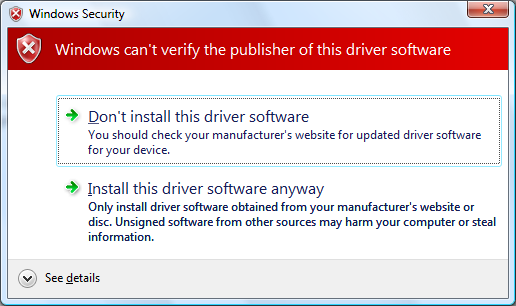
But what is the difference between signed and unsigned drivers?
A signed driver is basically a digitally signed driver, which means that the driver software is associated with a digital certificate that allows identification of the publisher of the driver. It also ensures that the driver has never been modified by anyone else, as that would corrupt the signed status and make it unsigned. Unsigned basically means the device driver does not have a digital signature, which makes it a potential security risk. Some PC hardware devices however will not have an official driver, so installing an unsigned driver would be the only way to make that hardware work. Just make sure the driver originates from a trusted source!
So using a signed driver will ensure that Windows can automatically install the driver and prevents malicious software to be installed along with the driver. Considering that drivers operate at a very high security level in the operating system, it is very important to use safe drivers.
Windows Vista, Windows 2008, server and Windows 7 already enforce unsigned drivers to be installed using administrator-level access, but how can you know for sure that an unsigned driver is safe?
Well, you cannot really. So always make sure that your security software is up to date and active, and make a backup or create a system restore point before you make any changes to your system, especially when installing device drivers.
Verify unsigned drivers in Windows XP
In Windows XP, the enforcement of signed drivers is not present, so the risk of installing unsigned drivers with all associated risks is much higher.
One thing you can do in Windows XP is to find the unsigned drivers in Windows XP and, if possible, replace them with newer, signed drivers.
Microsoft XP has a tool called Windows XP Signature Verification Tool (sigverif.exe) to check the unsigned driver files. Using this you can diagnose and find unsigned drivers, and try to update or replace the unsigned drivers with signed drivers, or disable the unsigned drivers if they do cause such problems.
Windows Vista has a similar program called Driver Verifier.
Disable Unsigned Driver Warnings
It is not something we recommend, but as a user, you can actually disable the warnings regarding unsigned drivers in Windows XP. Right-click the My Computer icon, and select Properties in the popup menu. Now select the Hardware tab, and click the Driver Signing button. Next, select the Ignore option and click OK.
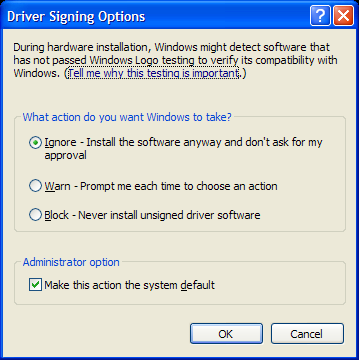
If you are using Windows XP Professional, you can also change the security policies to do the same.
Type “secpol.msc” at the Run option in the Start menu and press Enter. Then browse to Local Policies -> Security Options. Now find and change the option “Devices: Unsigned driver installation behavior” to “Silently succeed”. This requires a reboot of the computer.
Use unsigned drivers in Windows 7
Windows 7 will not allow you to install unsigned drivers as well. Although it is good to protect an operating system from installing potentially unreliable drivers, in some cases there simply are no signed drivers available. In that case, the unsigned drivers are the only way to make a device work.
In Windows 7 you can disable driver signing from the Start menu (F8), but that will need to be done during each boot.
Other options are to use the Group Policy editor, which will work for the Ultimate (and I also believe the Pro versions):
– start the Group Policy Editor using the gpedit.msc command on the start menu.
– select User Config -> Admin Templ. -> System -> Driver installation
– select IGNORE in the dropdown box
If the Group Policy Editor option is not available, you can use this method:
– start a command prompt with admin rights (right-click and select Run as Administrator)
– type bcdedit.exe -set loadoptions DDISABLE_INTEGRITY_CHECKS and press Enter
– type bcdedit.exe -set TESTSIGNING ON and press Enter
After this, you should be able to install unsigned drivers in Windows 7.
In case you want to revert the changes, use DENABLE_INTEGRITY_CHECKS as the last option in the first command and OFF instead of ON in the second command.
Use unsigned drivers in Windows 10 and Windows 11
Starting with Windows 10 enforcement of signed drivers has become even more stringent. Disabling driver signature enforcement is the best way to install an unsigned driver in Windows 10 and Windows 11.
To do this, you need to press the Windows + the X keys on the keyboard, which will bring up the menu that allows you to invoke the Windows Advanced Boot menu.
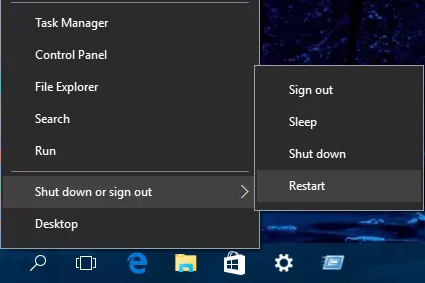
Click Shutdown or sign out and then click Restart.
After your PC restarts, the Windows Advanced Boot menu will show. Here you need to click the Troubleshoot option, and then in the Troubleshoot menu, click Advanced options.
In the Advanced options menu, select Start-up settings. And after that, click the Restart button to reboot the PC again.
When Windows 10 starts again, it will show you the Startup Settings menu.
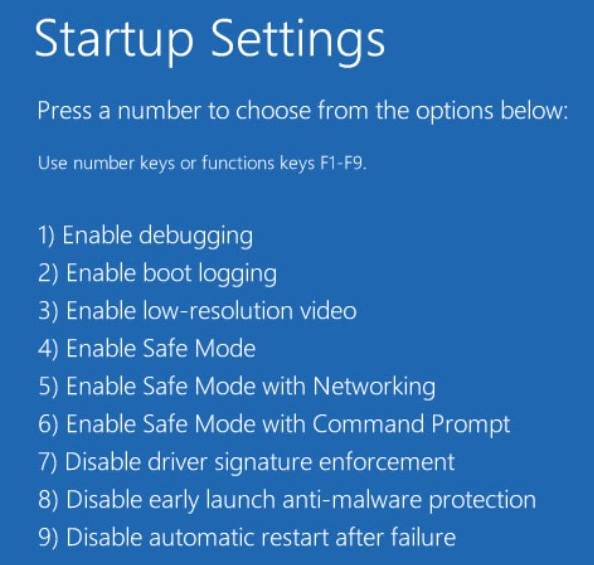
All you need to do here is press the F7 key to select the option to Disable driver signature enforcement. That will again reboot the PC, but now Windows will start completely, and then you can install the unsigned drivers.
If all this does not work for you, you can try signing the driver yourself. Windows supports a test mode which allows signed (but not digitally verified) drivers to be loaded. A utility called Driver Signature Enforcement Overrider can be used for this purpose.
To update your drivers in a few simple steps, you can use a driver update tool.
Entry Filed under: Device Drivers
3 Comments Add your own
1. Social Bookmarking | May 4th, 2010 at 8:41 am
– thanks again for the contribution to KarmaLynx.com- this will definitely help someone out someday. Glad it had both XP, and & information-
2. Amit Kumar | January 8th, 2013 at 12:57 am
Hello i am an application packager working on Windows 7 Platform. I got this unsigned driver while installing the application named as “ClearOne Coverge console” but i want to use it as signed driver so that it could be used in my package as unattended and the user should not have to interact with the installation of this Unsigned Driver. please give me feasible solution for . Thank you
3. Andy | January 9th, 2013 at 4:39 am
@Amit Kumar – The only way I know that will work in all cases is to sign the driver. So you’ll need a code signing certificate for that.
Leave a Comment
Trackback this post | Subscribe to the comments via RSS Feed