

Fix Driver Irql Not Less Or Equal Error
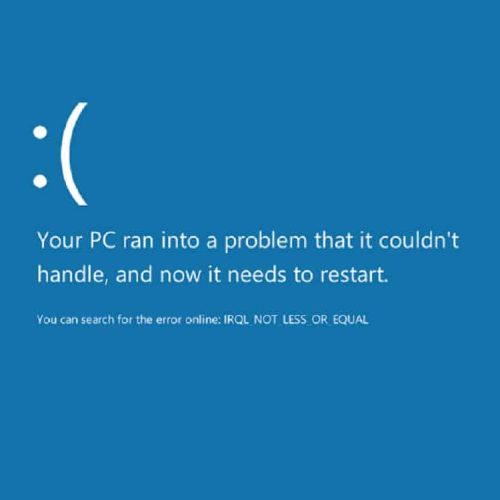
Device drivers are required to allow operating systems to communicate with computer hardware. In each new version of Windows more and more device drivers are included with the installation. But for a lot of hardware, special device drivers are required. If drivers are corrupted or not installed properly, Windows will report a device error. One of the device errors that Windows can report is a “Driver Irql Not Less Or Equal” error. This can result in a blue screen.
Causes for irql not less or equal error
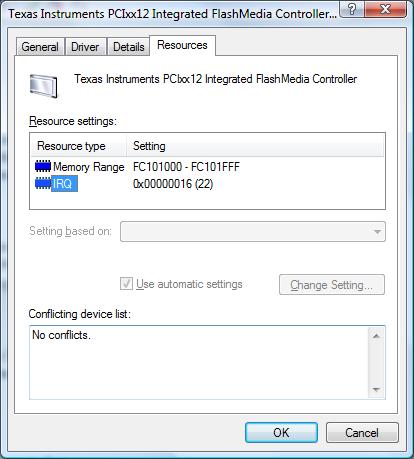
The irql not less or equal error basically indicates a problem with the system resources used by a hardware device, such as I/O address ranges, DMA, and IRQs. The IRQ is an interrupt request, which is used by the hardware to claim CPU time from the system. The number of IRQs in a PC however, is limited so sometimes different devices end up sharing an IRQ.

The Driver Irql Not Less Or Equal error can happen in any version of Windows, from Windows XP to Windows 11. The irql error can happen with the NDIS.SYS file, if the error is caused by a network or modem card, but other hardware can also be the cause of the conflict. Because of the severity of this kernel-level problem, the error results in a blue screen or stop error. Driver errors would normally be obvious because the blue screen error lists a .SYS file.
Fixing the error
#1 – Using the .SYS filename, you can find out which device or hardware is responsible for the error. You can then disable the hardware in the Windows Device Manager to see if the device is really the cause of the error. If the .SYS filename is not shown on the blue screen, use Event Viewer or a memory dump to find out the responsible driver.
#2 – Running a memory test is also a good idea, as faulty memory can be the cause of many stop errors. In the Bios, disable the quick start, so the full diagnostics are run, and a memory test can be run using the software.
#3 – In most cases, the ‘irql not less or equal’ error can be solved by updating the drivers for the device causing the error. Also make sure you update your Windows and antivirus software, as some of these errors are not caused by hardware, but software problems. You can use the Windows device manager to uninstall any currently installed driver for the device and then reinstall the latest driver. When you reboot your PC after uninstalling the drivers, Windows will detect the new hardware, which allows you to install the latest drivers for the device.
If you do not have the drivers for the device in error or are not comfortable with using the Windows device manager, you can also use a driver update program to find, download, and update all device drivers for you. Driver update software will accurately identify your hardware, including the device in error, and automatically install the latest drivers for it. This can solve driver irql not less or equal errors.
#4 – If updating the drivers does not fix the issue, try loading the default BIOS/UEFI options. This will ensure that RAM timing, FSB timing, and CPU timing are not causing the error. Further, you can check the resource assignments on the devices in the Windows Device Manager to check if there is an IRQ conflict.
#5 – Microsoft further advises that you try to load the last known good configuration using the start menu (press the F8 key during boot). But you do need to make sure that the problem does not introduce itself again as a result of changes or updates. So the best way is to find the real cause of a blue screen error and fix it.
And, for people that are still running Windows 2000, there is another possible cause for the driver_irql_not_less_or_equal error. It is related to dismounting drive volumes. Check the Microsoft knowledge base article on this to fix it.
Although we wrote this article originally with older Windows versions in mind, the error can still occur in the latest Windows versions. The basis approach to solving the error is the same, even for Windows 10 and Windows 11.
Entry Filed under: Device Errors
92 Comments Add your own
1. Cas | June 3rd, 2013 at 10:42 pm
My system error says “tcpip.sys”. Also, I have Windows 8 & it seems silly to be having this happen because I literally got this laptop two days ago and I have already had to reset it to factory settings twice. Please give me thorough instructions on how to fix this! Thanks!
2. Andy | June 4th, 2013 at 4:13 pm
@Cas – Typically the irql not less or equal – error is caused by a device driver, so in the case of the tcpip.sys it would most likely be a network driver (either your ethernet or wireless device, depending on which you are using).
So try reinstalling or updating the network drivers.
If that does not help, try disabling your antivirus software, and enable Windows Defender (the default Windows security protection). There have been a few cases where AVG or other AV software caused it.
Leave a Comment
Trackback this post | Subscribe to the comments via RSS Feed